Batch Image-to-Image - Edit Multiple Photos at Once with AI
batch-img2img
Written By @levelsio
Last updated 7 months ago
Creating AI-enhanced images just got a major upgrade.
With Photo AI’s new [ Batch remix ] and [ Batch try on ] feature, you can now upload multiple photos at once, and watch as each photo gets remixed and each garment get worn using your trained AI model. That means you (or your hired model) can appear across dozens of unique, stylized images in one go.
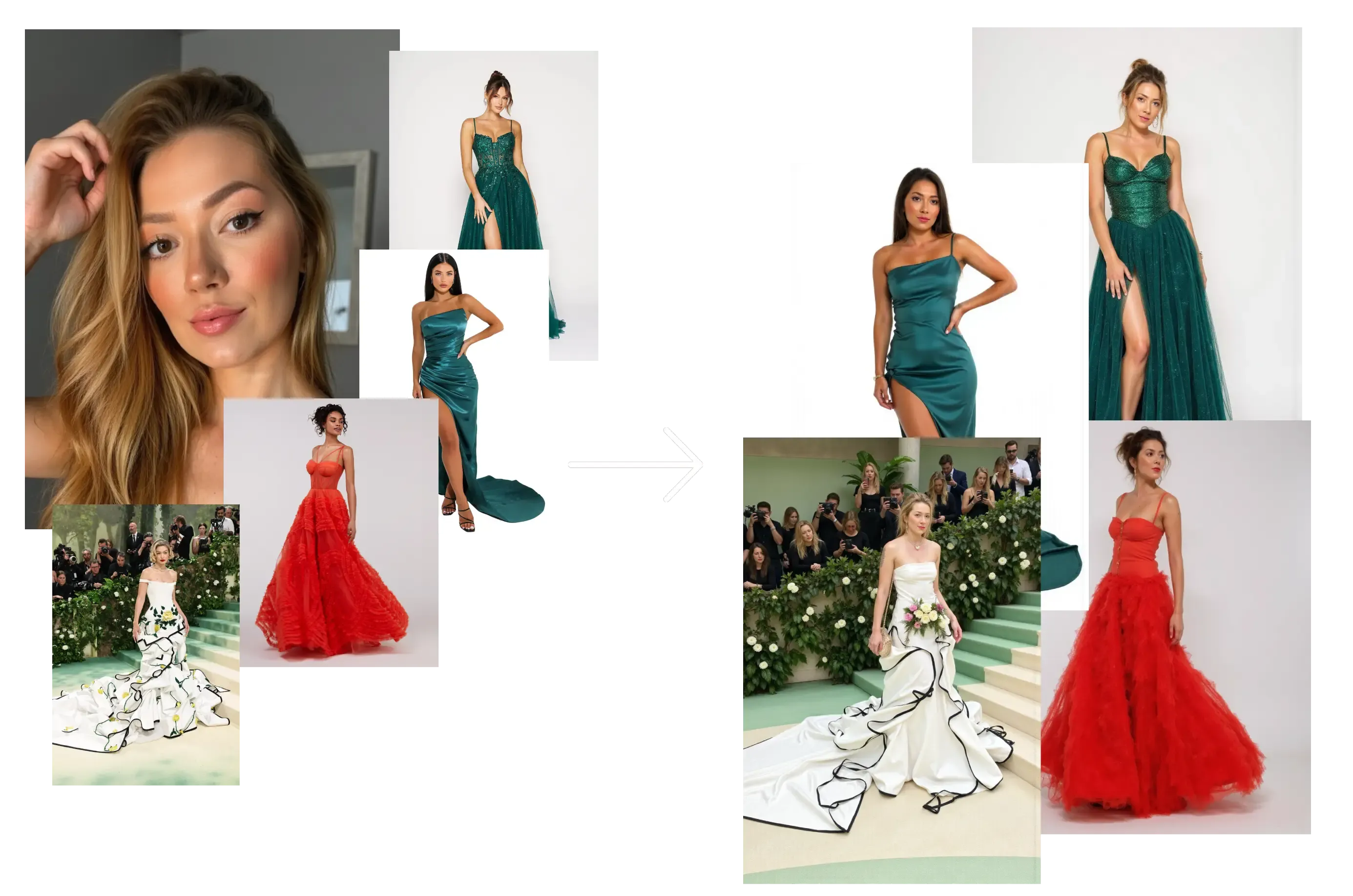
Step 1: Create or select your AI model
Go to [ Create new AI model ] in the sidebar. Upload around 20 photos of your model, this could be yourself or someone you’ve hired.
In about a minute, Photo AI will train a photorealistic, personalized AI model that looks just like them.
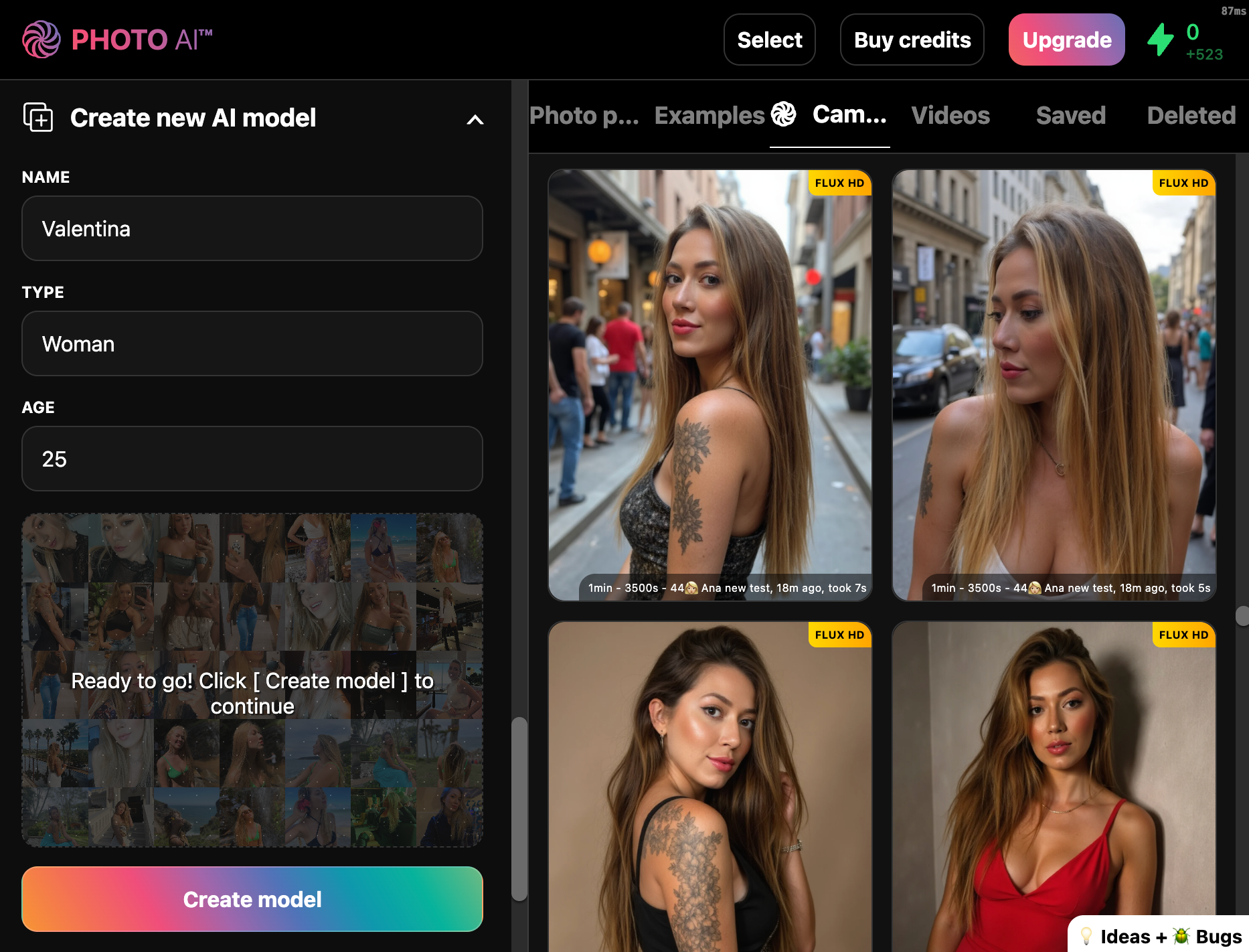
You can reuse this model to try on different outfits endlessly.
Step 2: Go to [ Remix a photo ] in the sidebar
This opens the remix panel where you can upload your photos:
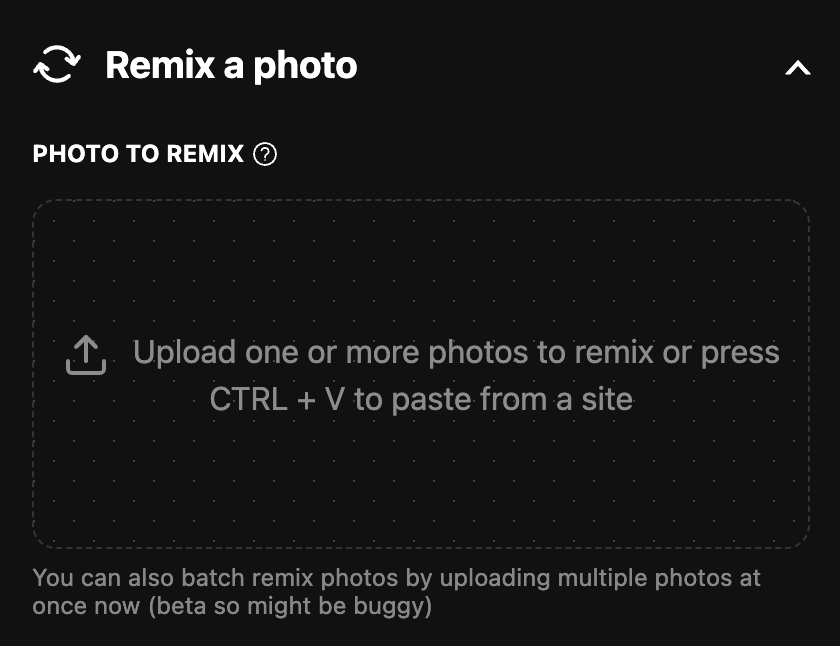
Step 3: Upload multiple images
Upload multiple photos — your original photo shoots, poses, or inspiration images.
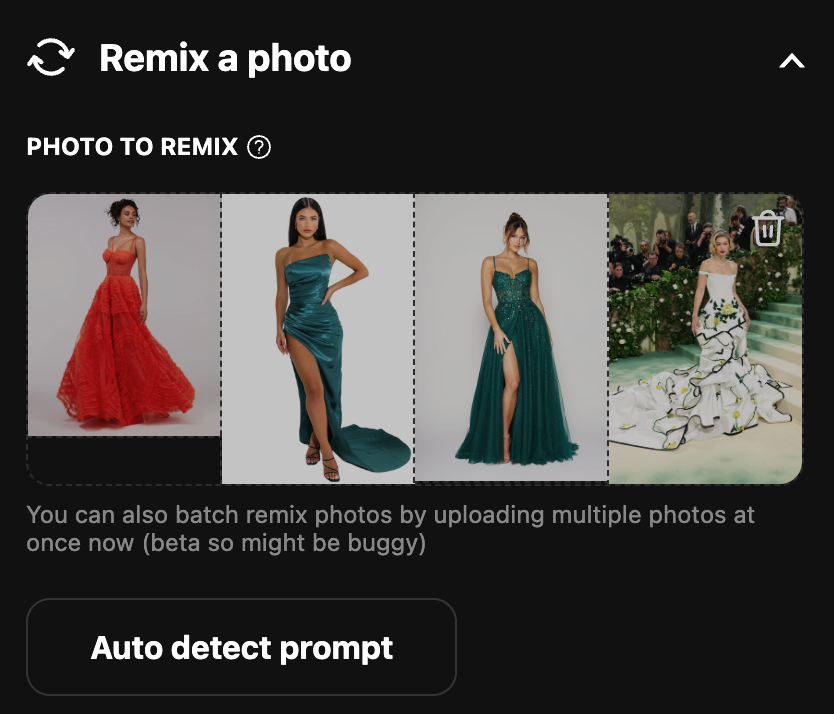
Step 4: Tap [ Take photo ]
Each photo gets processed individually with the model applied, producing consistent AI portraits, fashion shots, or product previews.
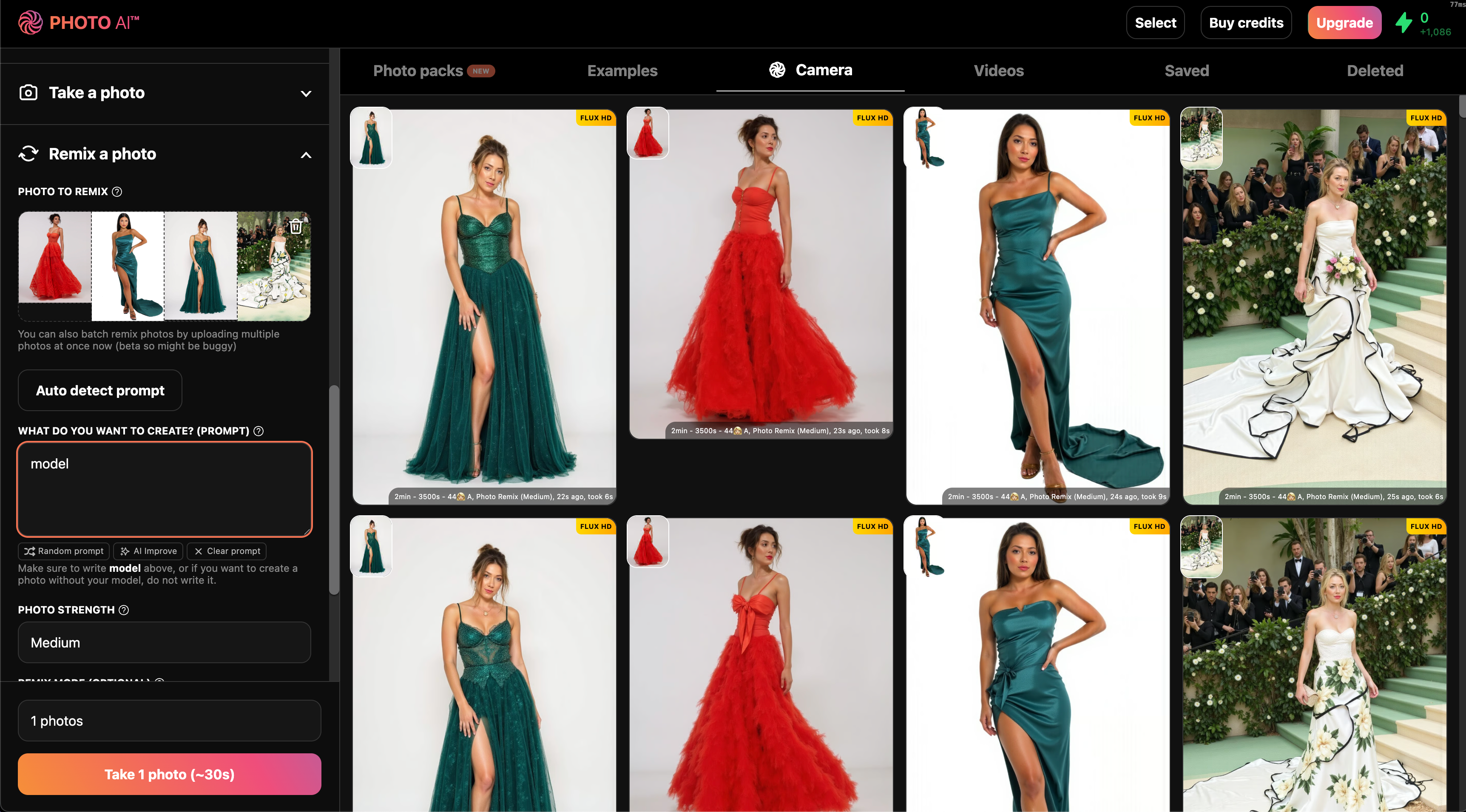
👉 Try batch img2img now with [ Remix a photo ] mode on Photo AI.
Still need help? Share an idea