Uncrop & expand images with Photo AI's Zoom Out feature
uncrop-ai
Written By @levelsio
Last updated About 1 year ago
Ever wish you could zoom out of a photo that was shot too tight or extend the background beyond the frame? With Photo AI’s Zoom Out feature, you can do exactly that. It uses generative AI to uncrop and expand your images realistically, filling in extra space that looks like it was always there.
Perfect for fixing awkward crops, generating landscape shots, or giving more room around your subject.
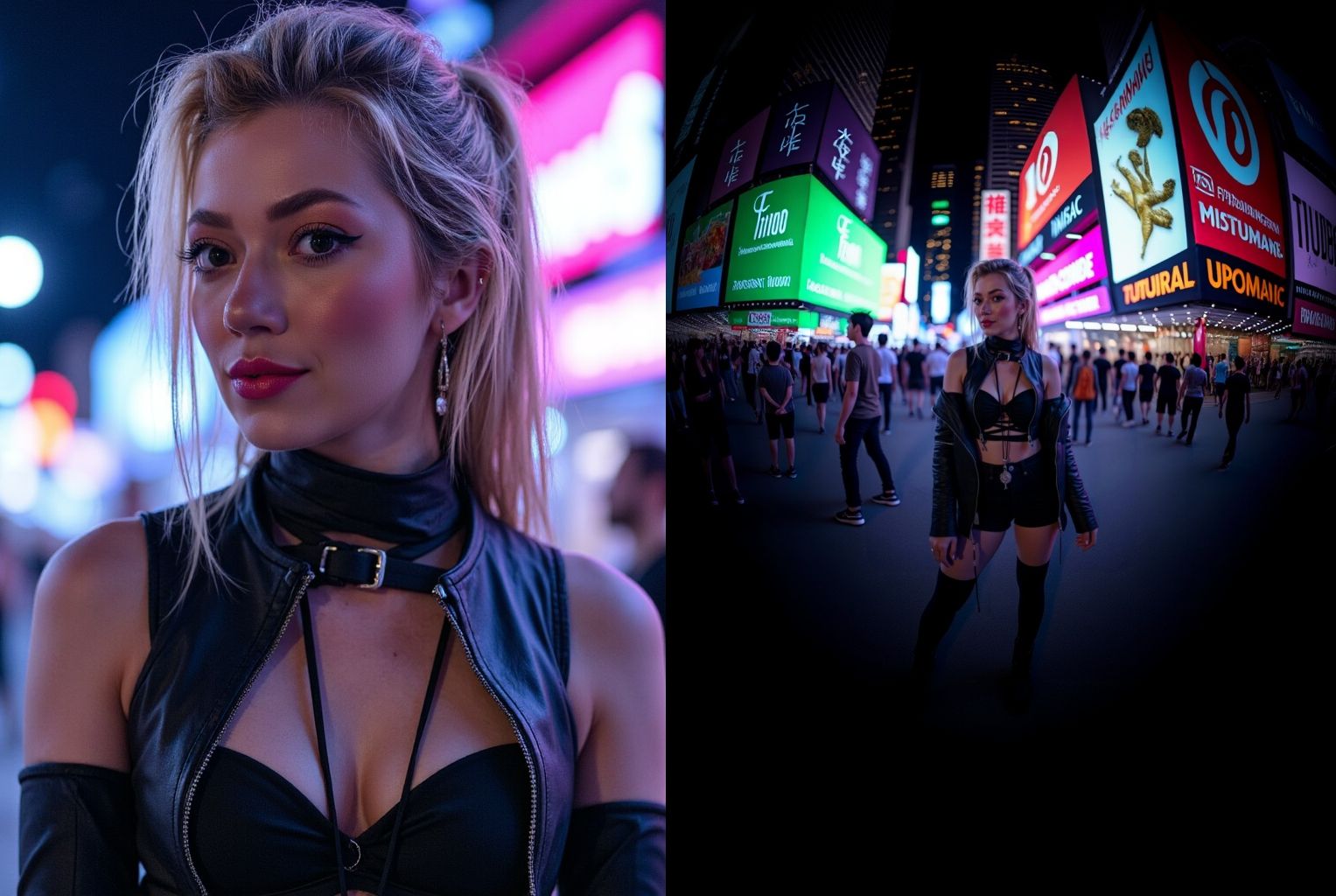
What is Zoom Out?
Zoom Out is Photo AI’s image uncropping tool. It uses AI to extend your original image outward, generating new background and scene content to fill the space while keeping your subject exactly the same.
It’s like reverse-cropping: instead of cutting out, you grow the image.
When to use it:
You want to turn a tight headshot into a portrait
You need a horizontal version of a vertical photo
A model or product is cut off in the frame
You want to create more whitespace or background for design
Step 1: Select your image
Choose any generated photo inside your Photo AI account that you want to expand.
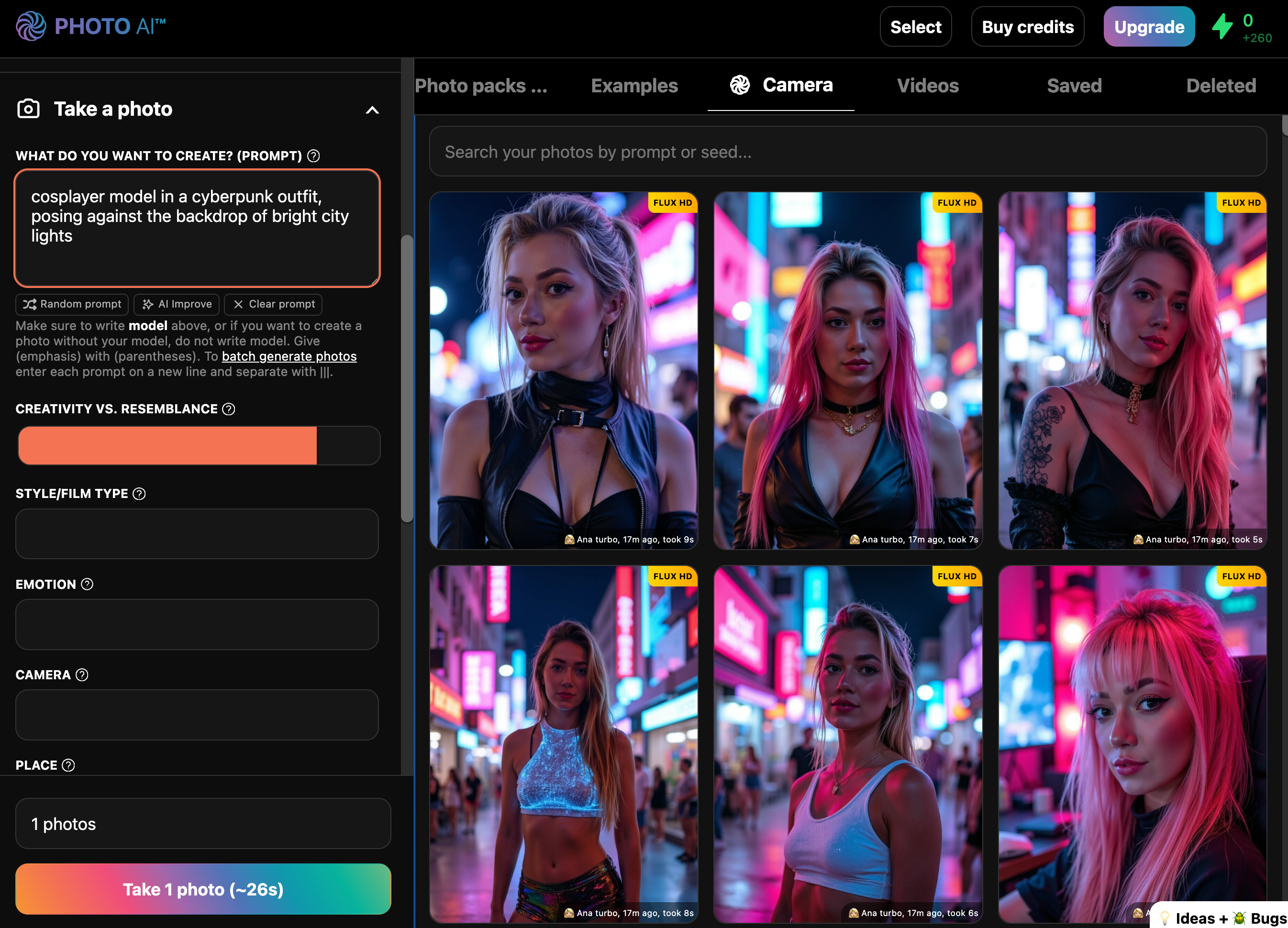
Step 2: Click [ Zoom Out ]
You’ll find it in the hover actions under the image, or in the image actions menu.
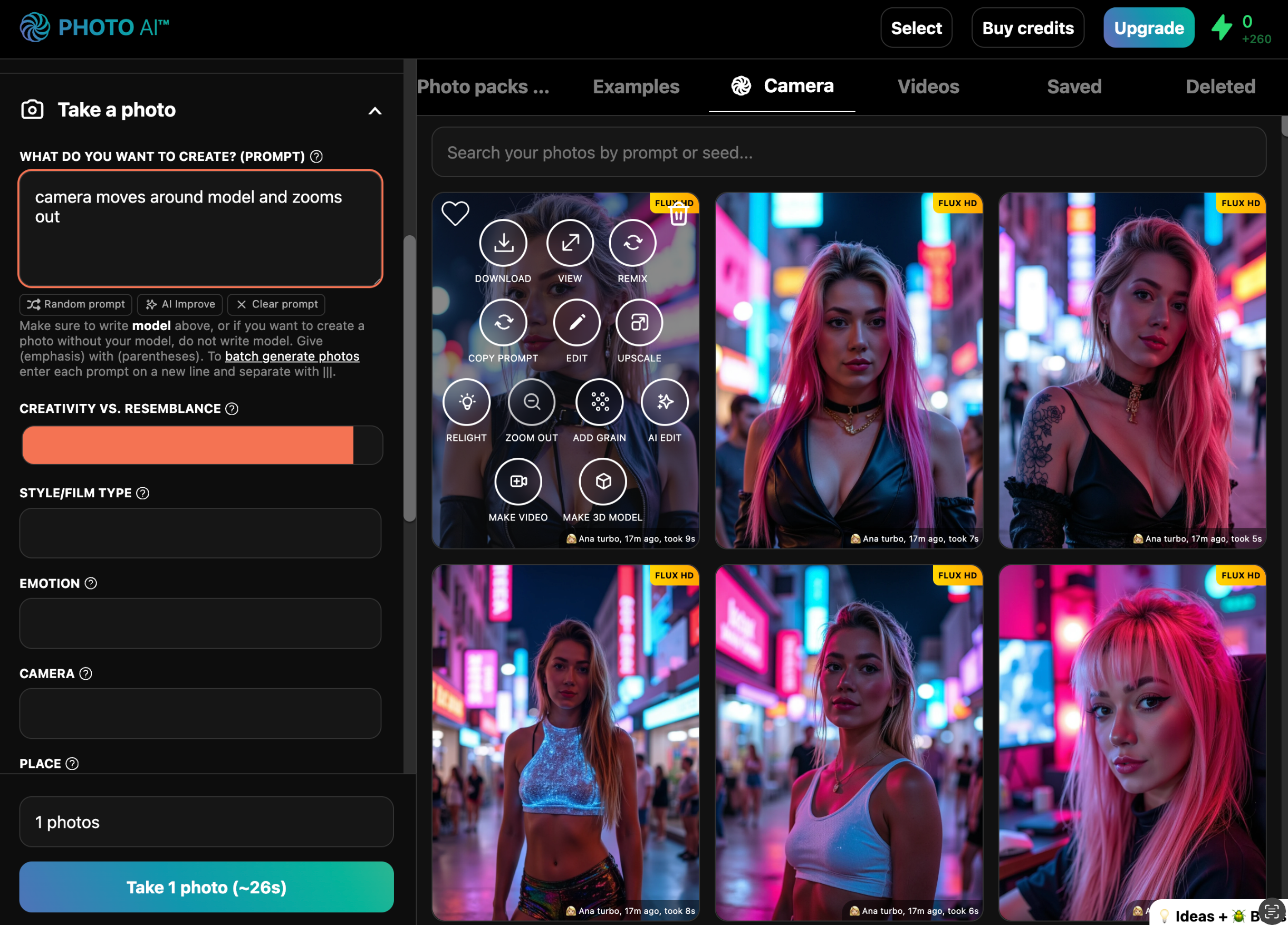
Step 3: See the result
In seconds, Photo AI gives you an expanded version with new background and realistic edge content that blends seamlessly with your original photo.
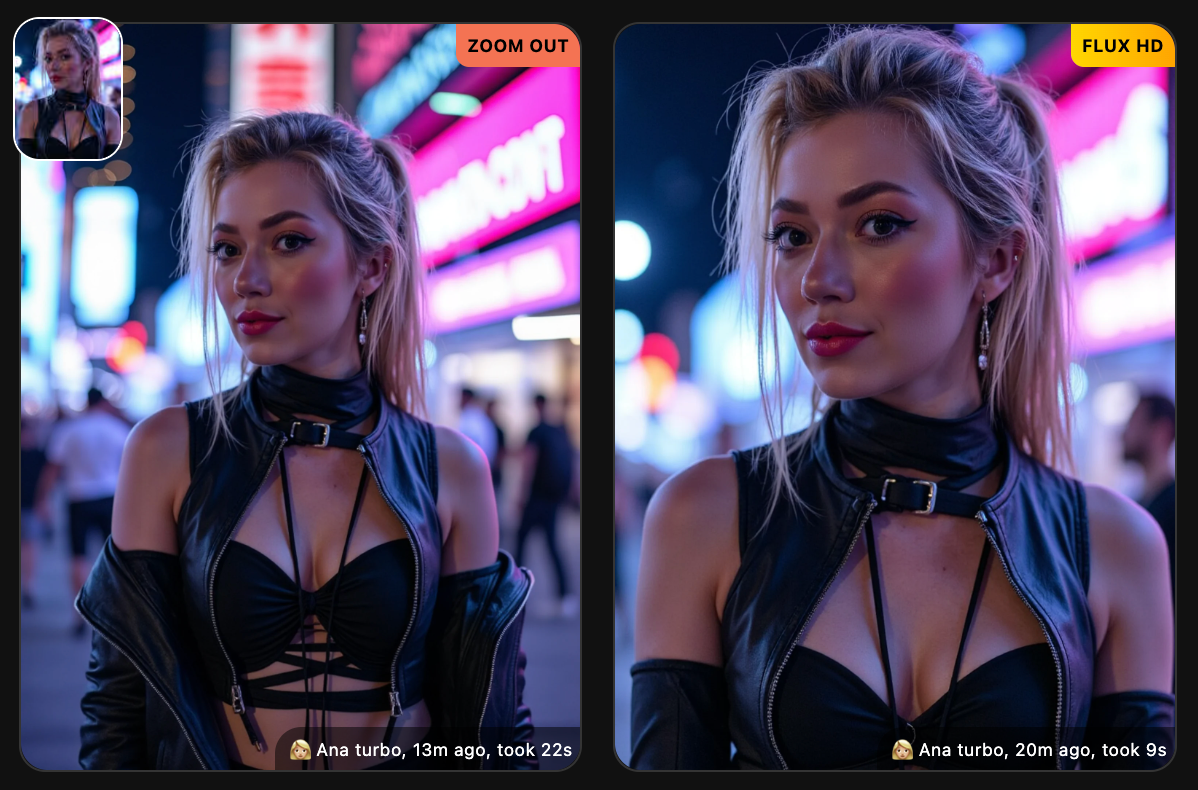
Step 4 (optionally): Do it again and again and again
You can keep zooming out essentially forever. Just keep tapping [ Zoom out ] on the new zoomed out photo every time it’s done.
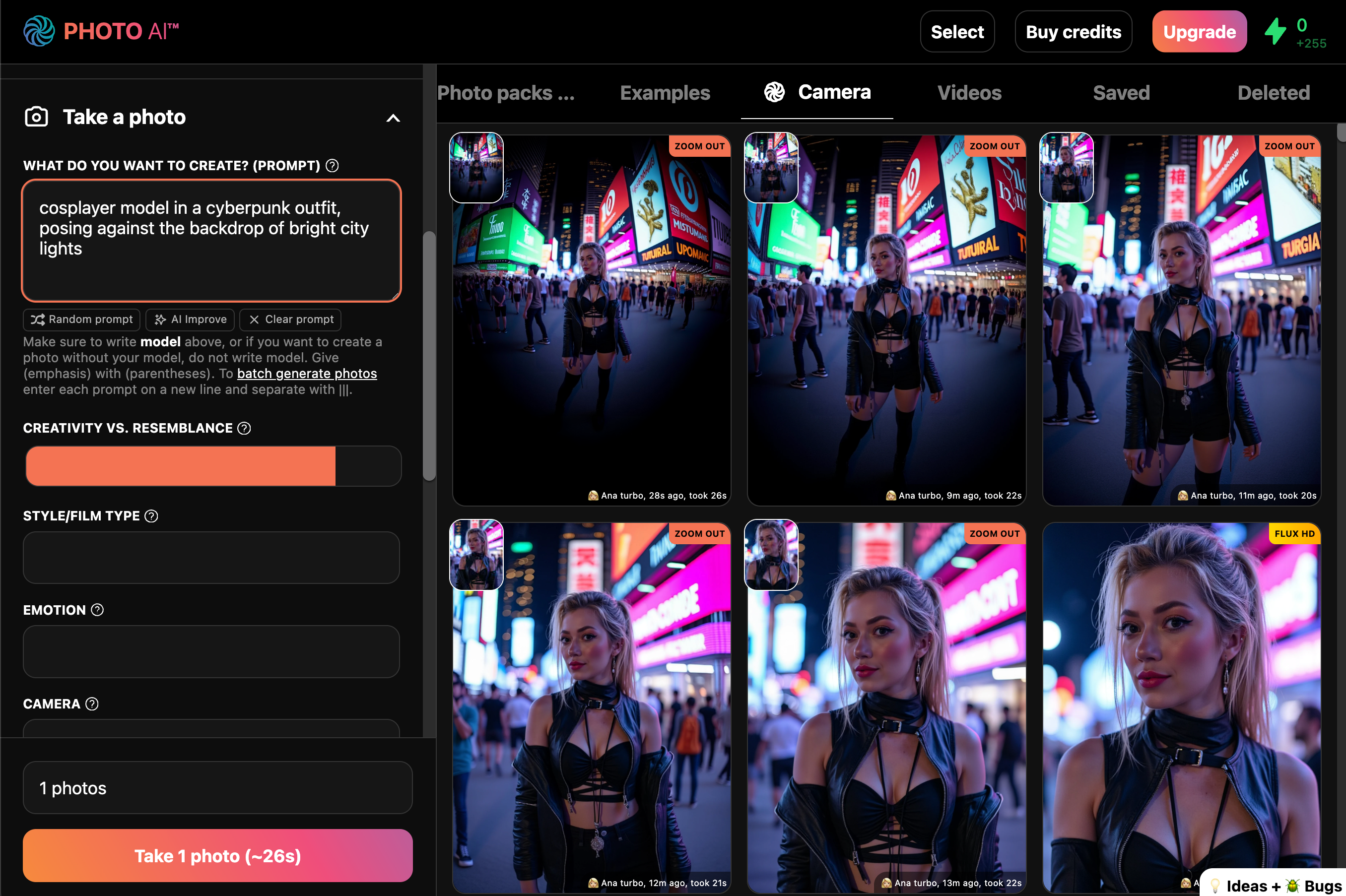
You go from this:

All the way to this:
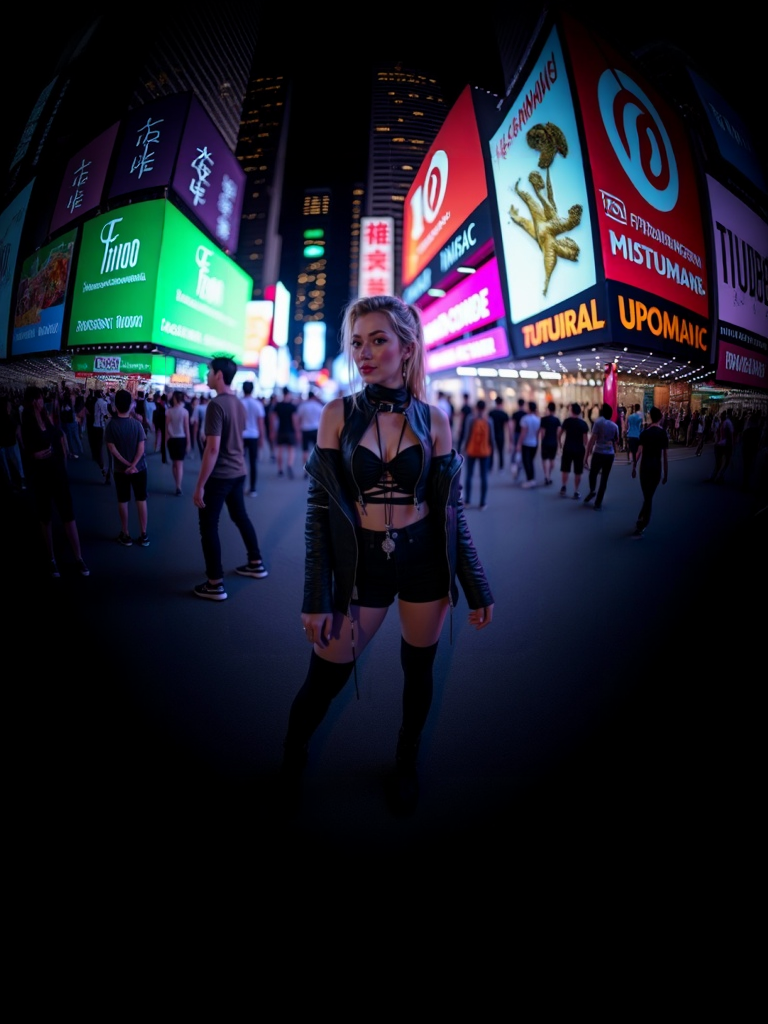
Upload your own images to uncrop and expand
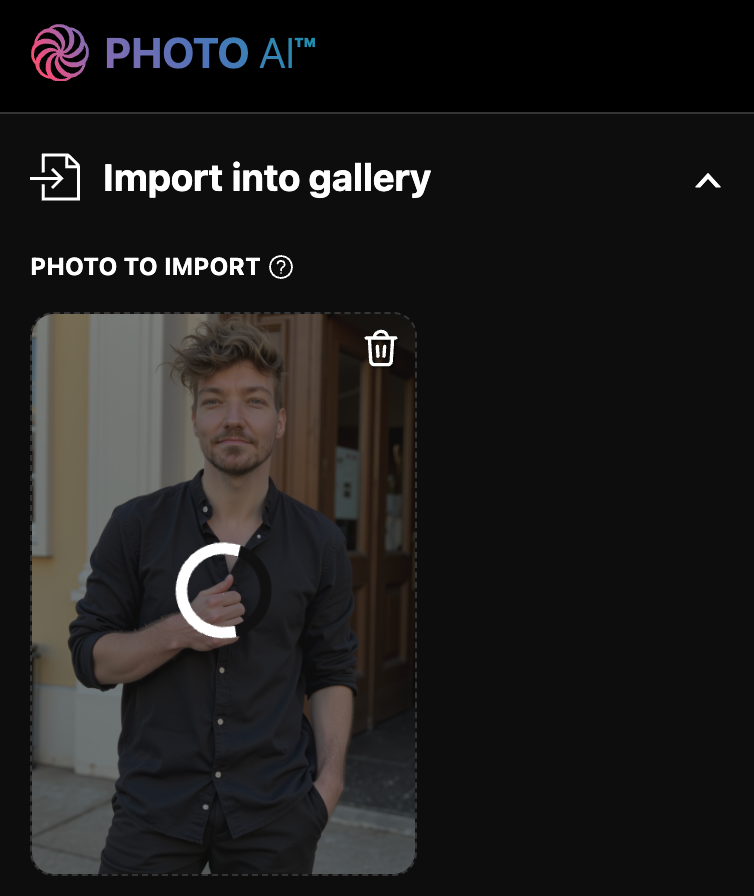
With Photo AI you can also upload your own images (like real photos you made or literally any image you can think of) and uncrop them with [ Zoom out ]
First go to [ Import into gallery ] and select your image.
Then once it shows up in the gallery, hover over the image and tap [ Zoom out ].
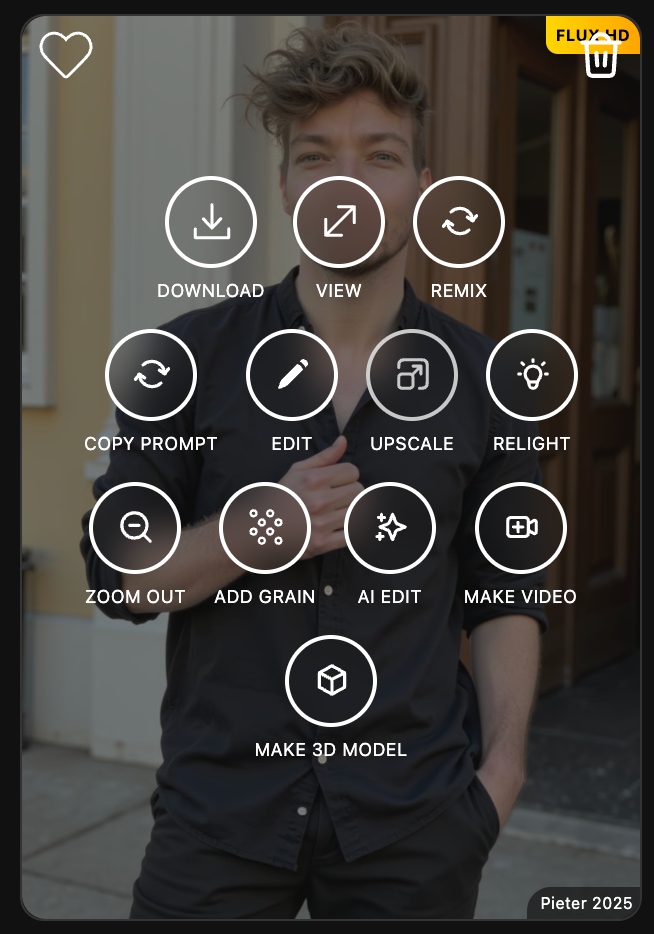
It then starts processing:
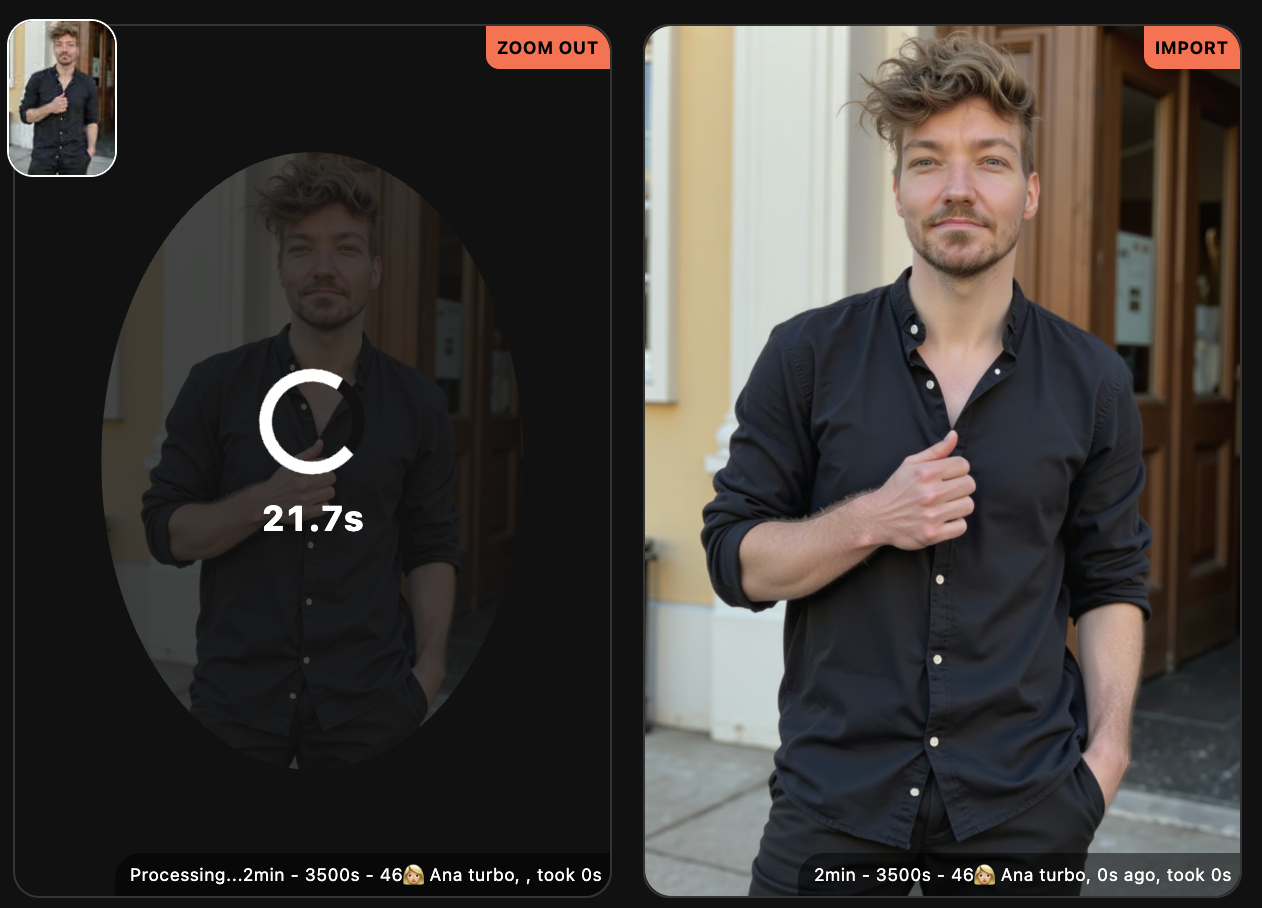
And then you have your zoomed out photo:
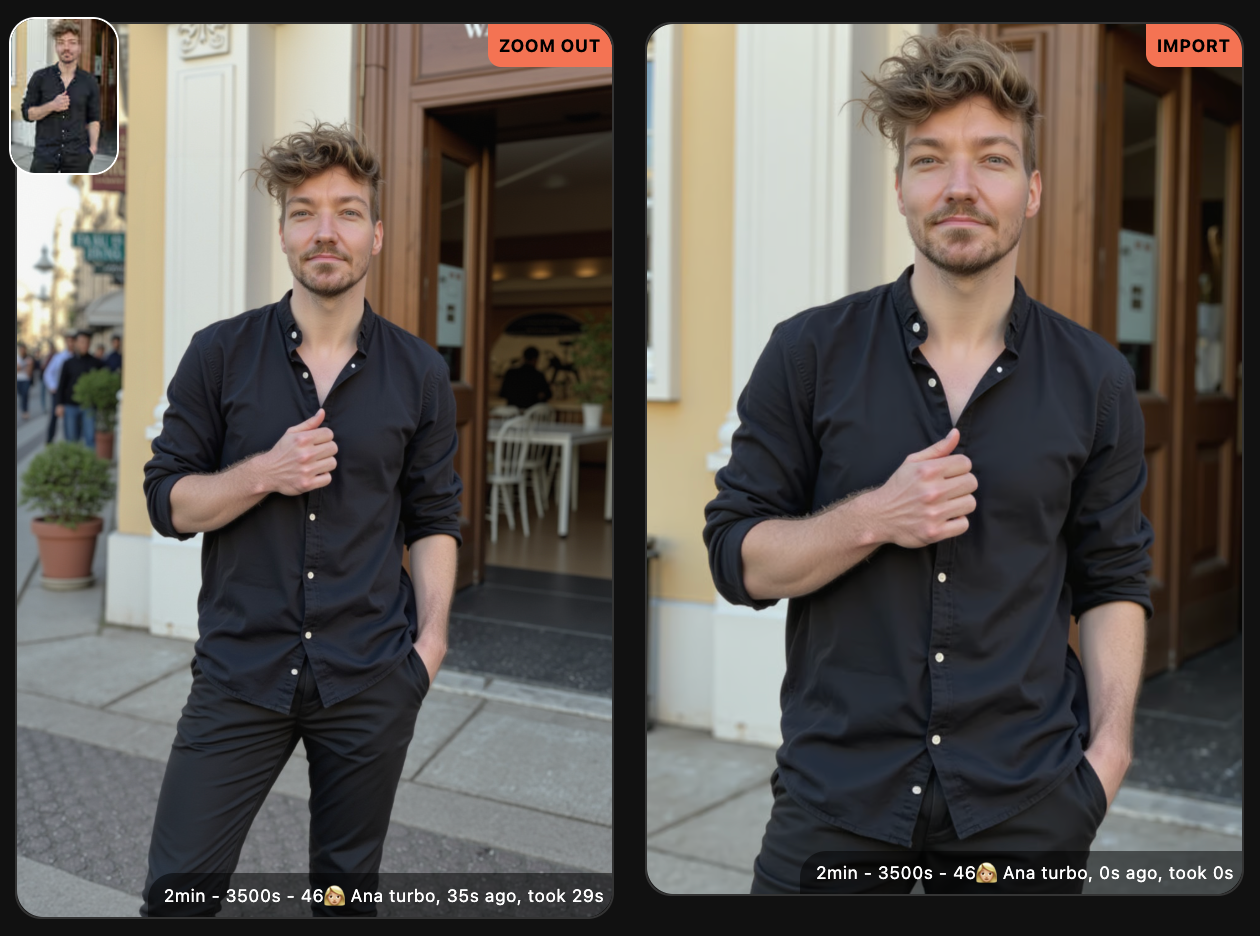
And if you keep going:
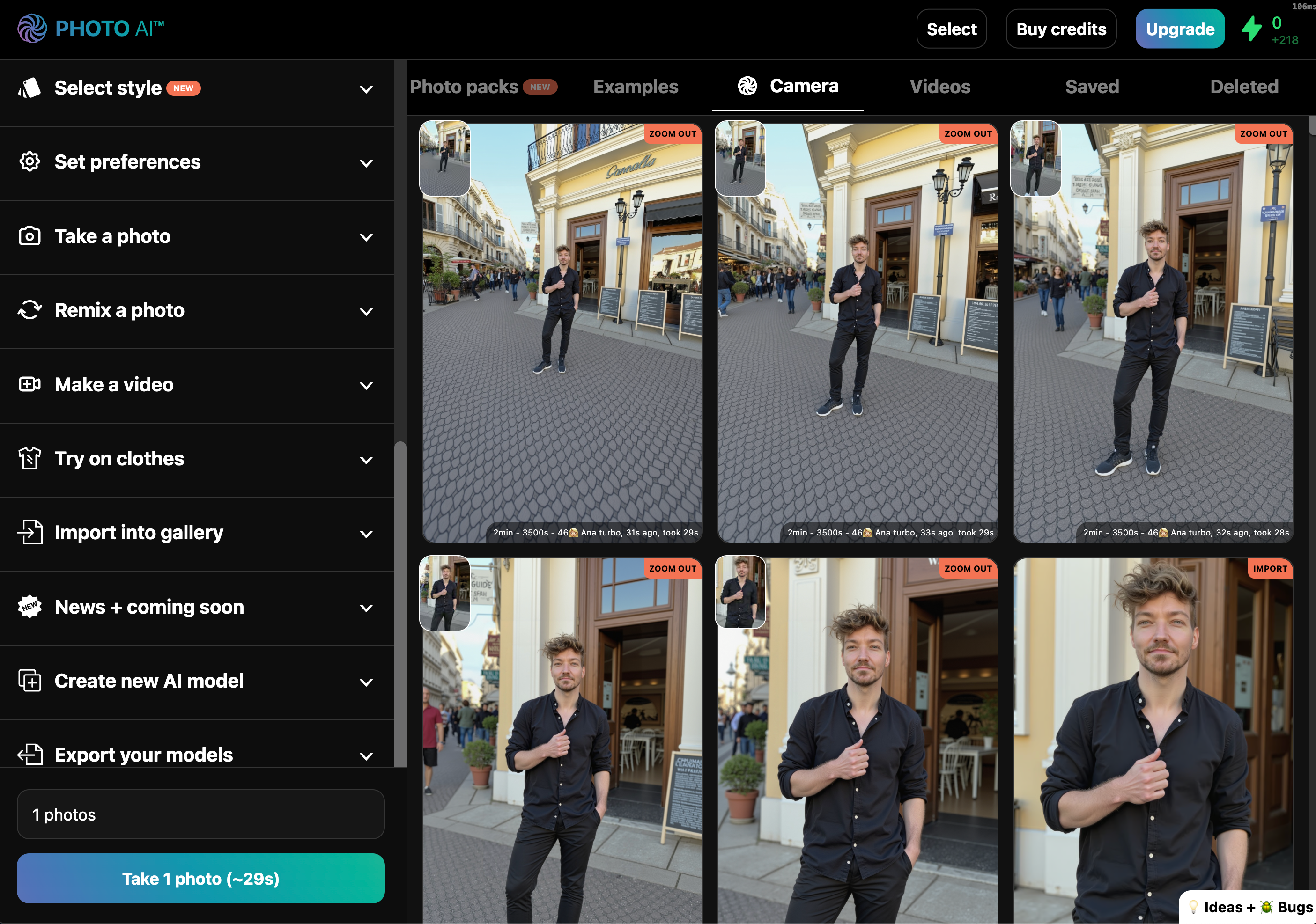
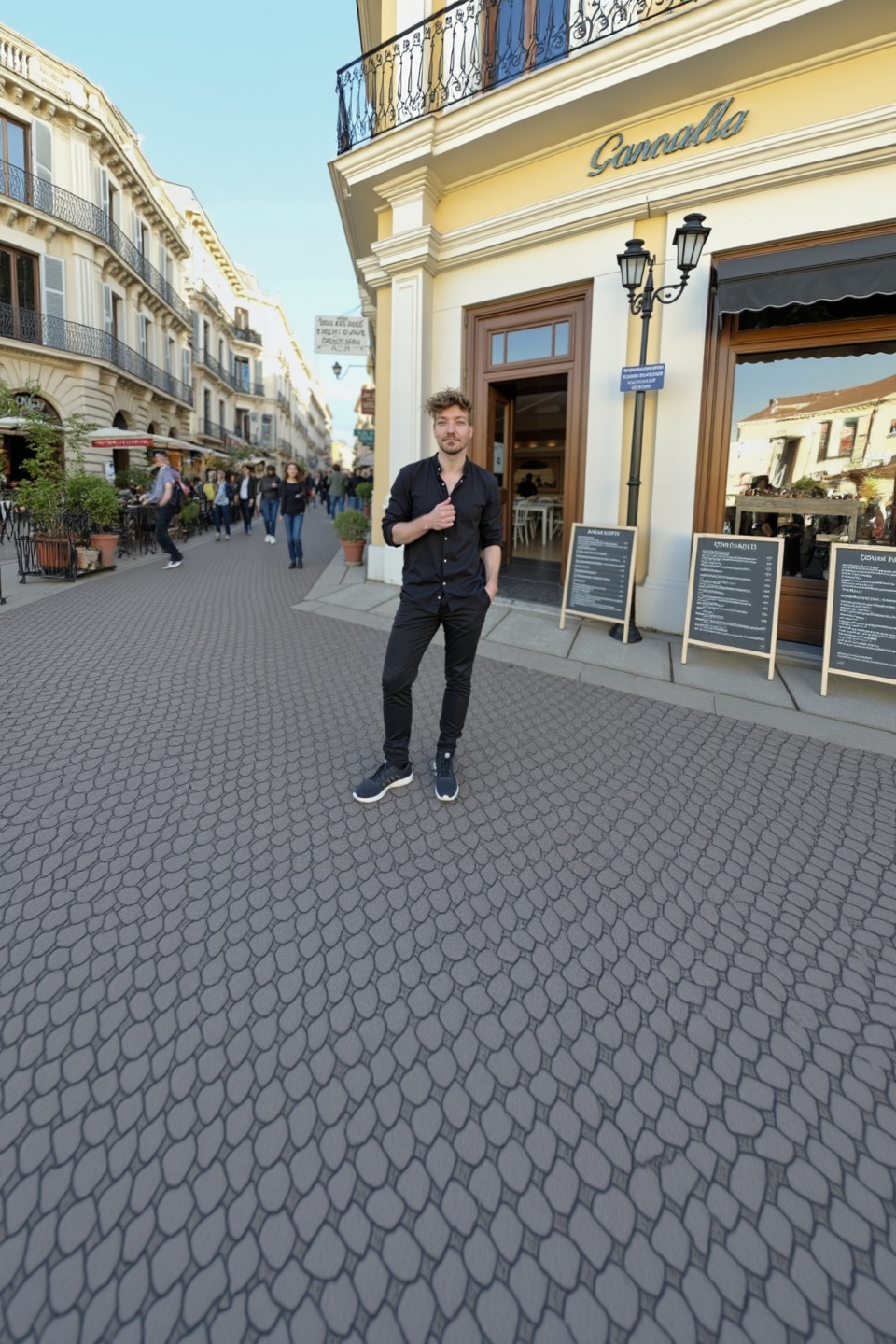
So we can go from:

all the way to:
Still need help? Share an idea